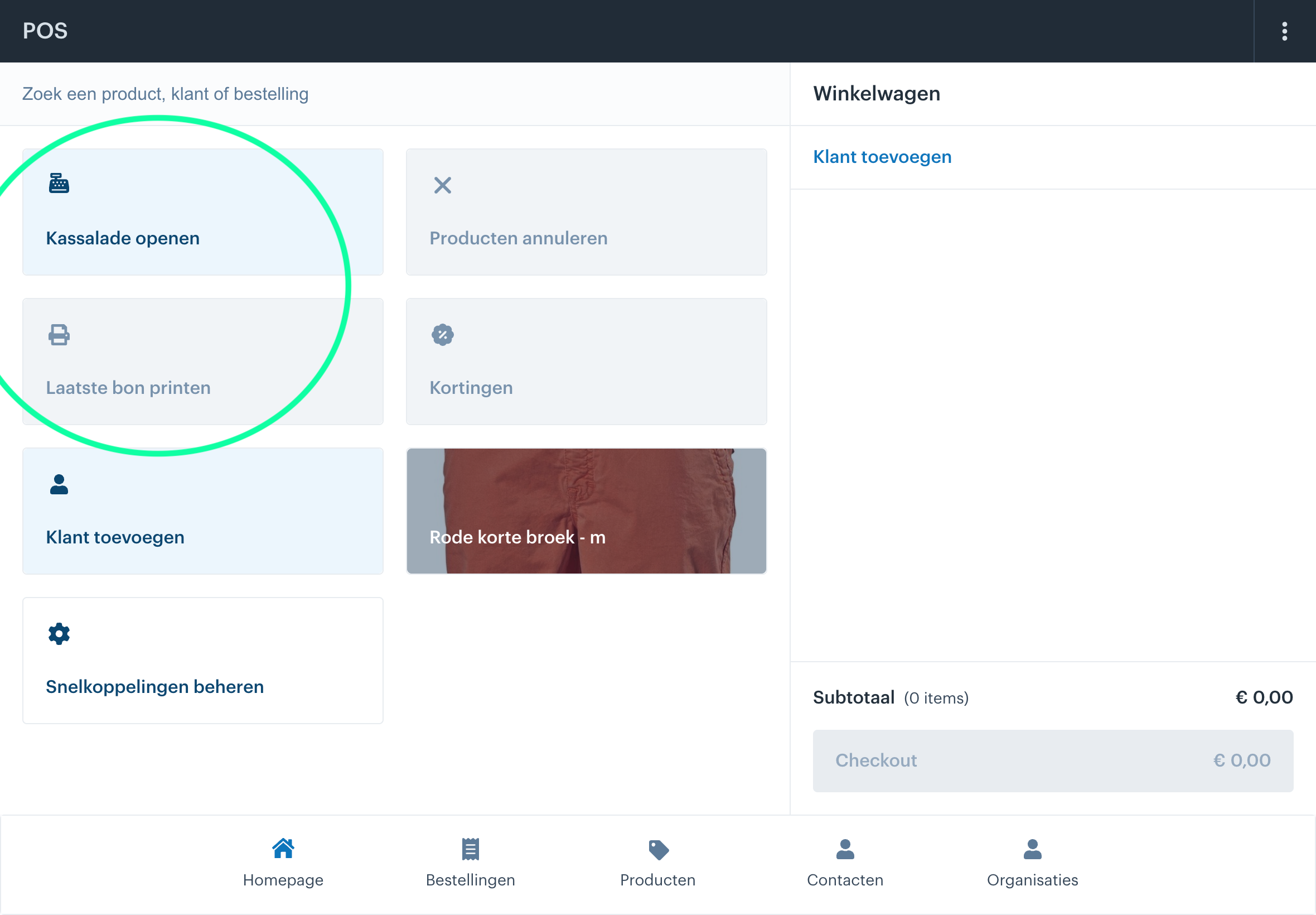
Open Cash Drawer
How to Open the Cash Drawer + Manage Shortcuts
Within the Afosto system, there are several handy features to make your workflow more efficient. You can easily open the cash drawer and manage shortcuts for faster access to frequently used functions. This guide explains step by step how to perform these actions.
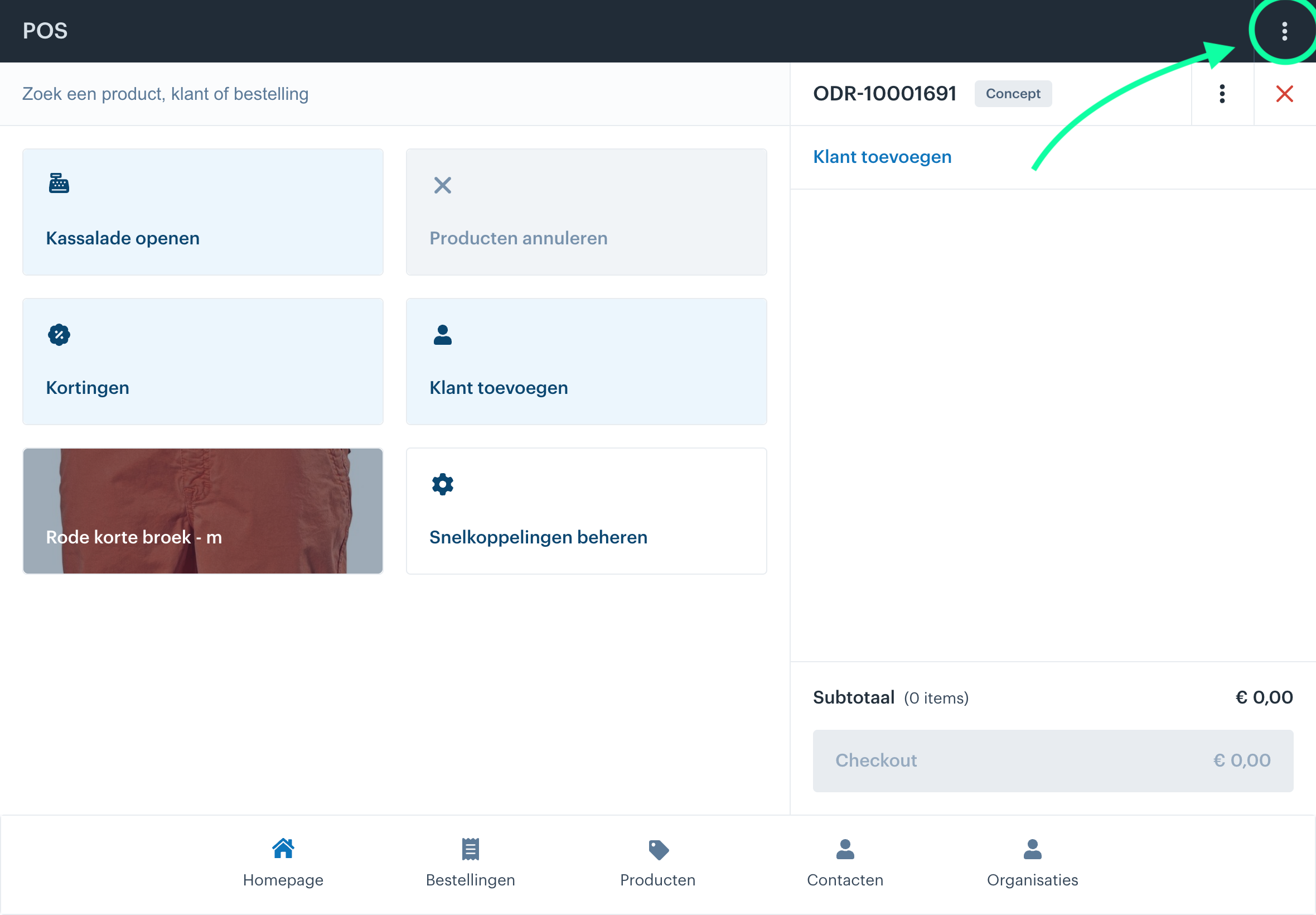
Click on the three dots icon (⋮) in the top-right corner of your screen. This opens a menu with various options.
In this menu, you’ll see several commonly used functions. For this guide, we focus specifically on the option to open the cash drawer.

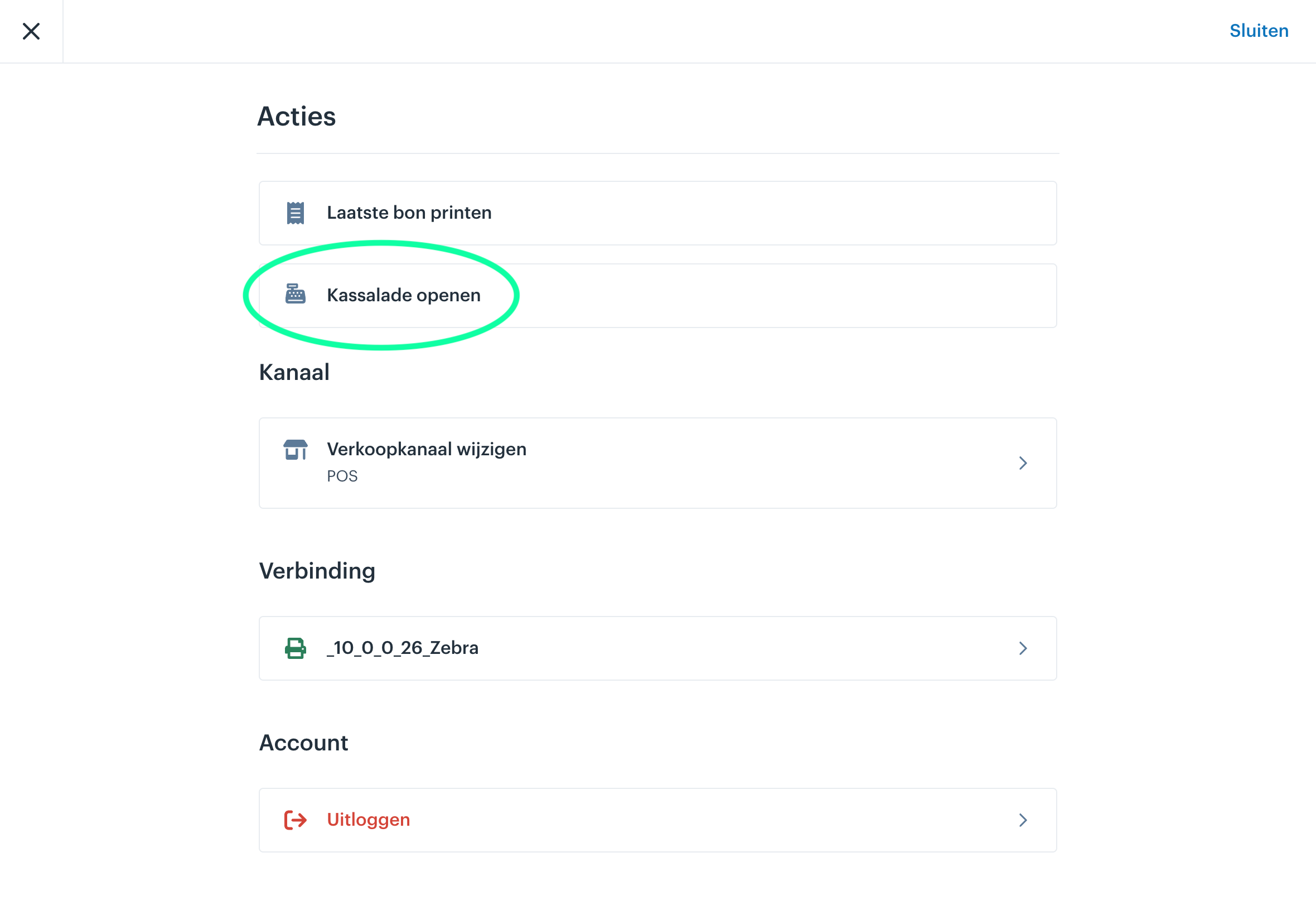
In the menu that now appears, look for the option ‘Open Cash Drawer’. Click this to immediately open the cash drawer. This function is useful when you need quick access to the drawer, for example when giving change or performing a cash audit.
To make your workflow easier, you can set up shortcuts for functions you use frequently. This way, you don’t have to open the menu every time. To set up a shortcut: select Add Shortcut at the bottom of your dashboard.
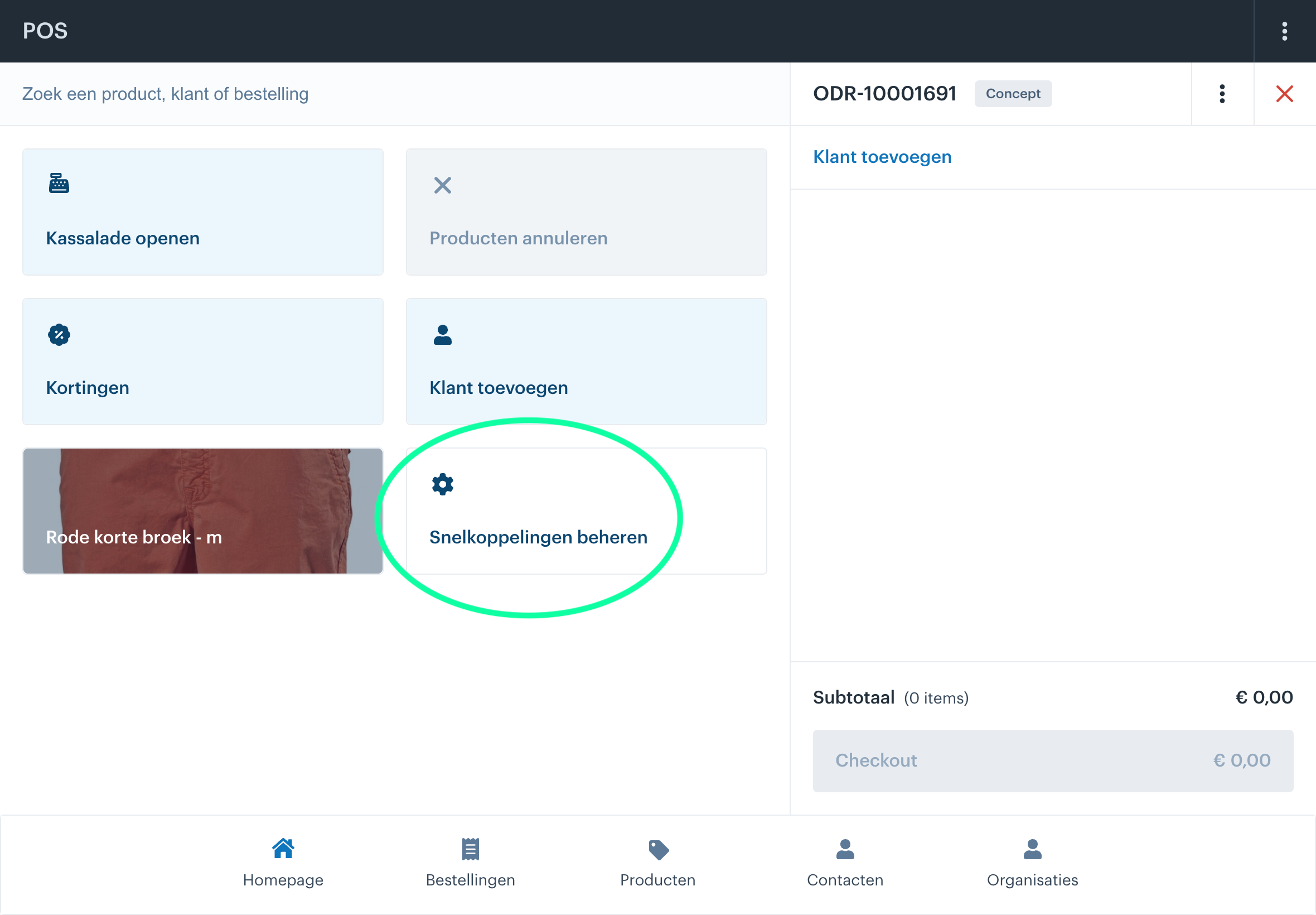
Let’s set up a shortcut for opening the cash drawer as an example:
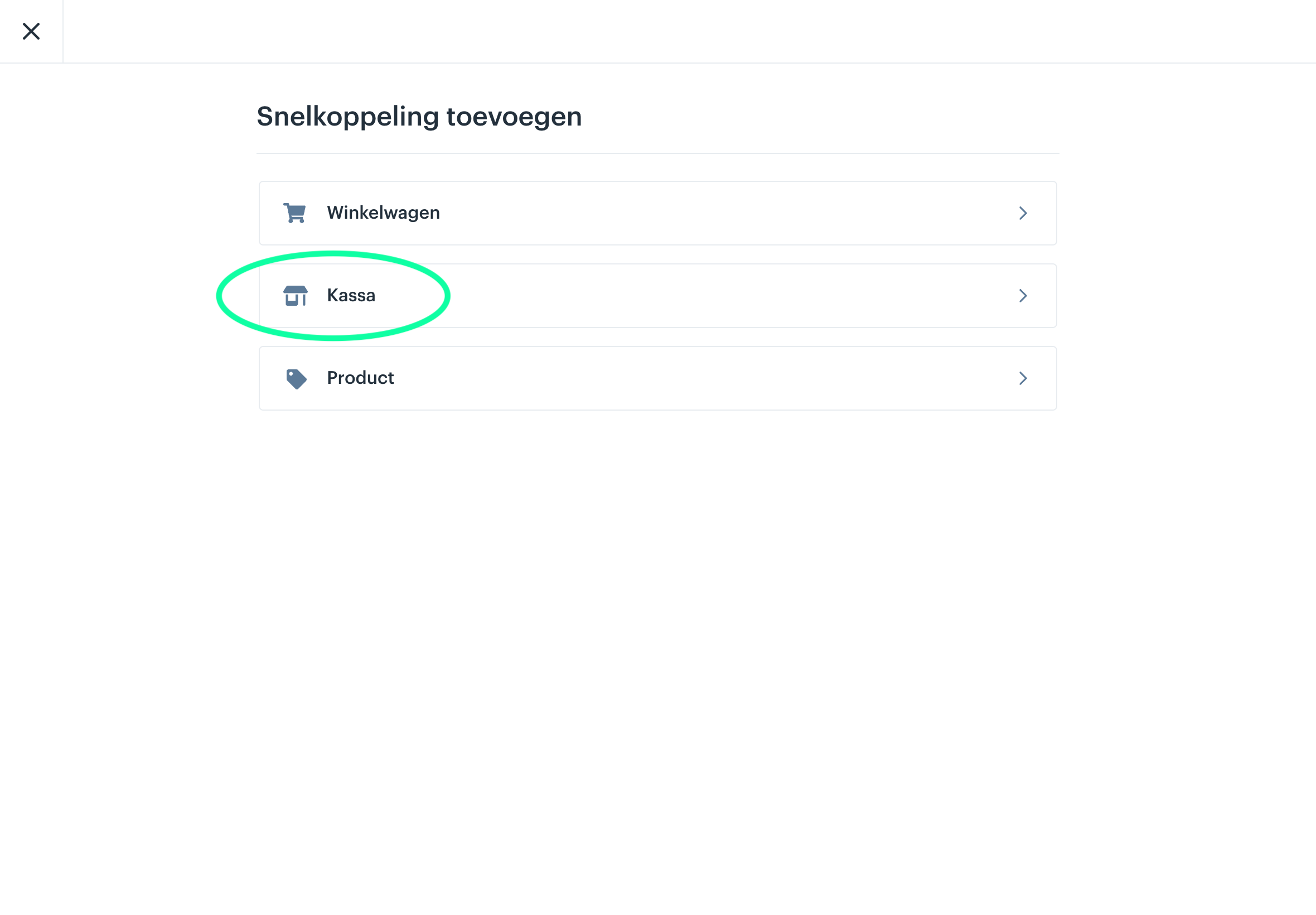
- In the Shortcuts menu, choose Cash Register.
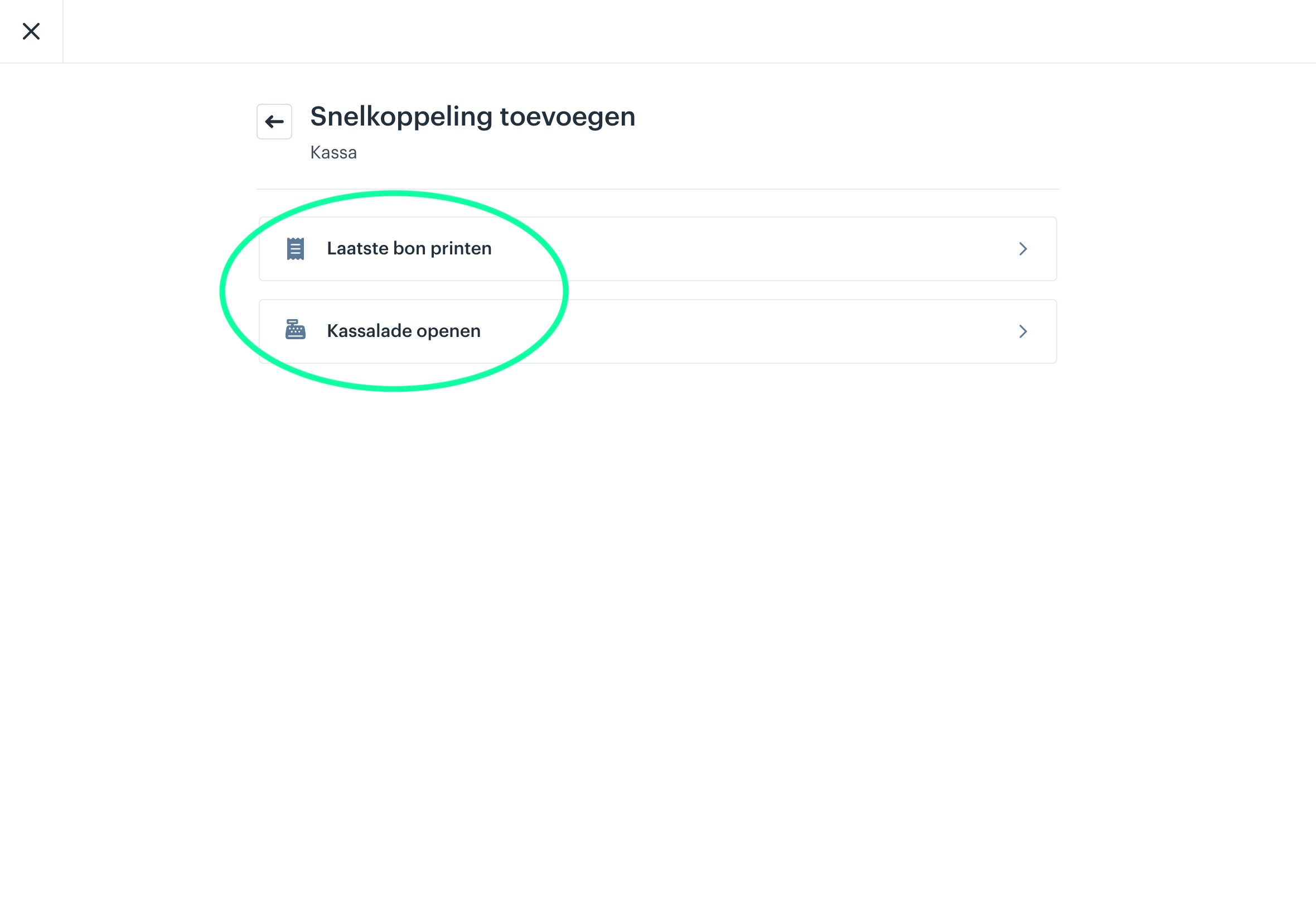
- Here, you can select which functions you want to add as a shortcut.
- In this example, we select both ‘Print Last Receipt’ and ‘Open Cash Drawer’.
After adding the shortcuts, they will now be clearly displayed on your dashboard. With just one click, you can:
- Print the last receipt
- Open the cash drawer
This not only saves you time but also allows you to focus on more important tasks, such as assisting customers.